
How to file RFIs and submittals by sender with n8n: An n8n Walk-Through
A 20-person construction administration firm adapts a published n8n template to file consultant attachments in project Drive folders and notify the architect.
Construction administration document filing is the work of taking incoming project files, putting them where the team expects them, and making the next review visible. It matters when an RFI, submittal, or consultant drawing arrives between coordination meetings and disappears in an inbox.
Email can be a valid project channel, but it is a poor filing system when one person must remember every sender, folder, and attachment. A rule-based workflow can move the file while the message is still easy to find.
If you use n8n Cloud’s Starter plan, its published allowance is 2,500 workflow executions per month with unlimited steps, so estimate message volume before you choose a plan. (n8n pricing)
The moment: an attachment waits in the inbox
This is an illustrative scenario. A 20-person firm works in construction administration on three projects. The structural engineer, the MEP engineer, and the GC each send attachments by email. The project architect files them by hand at the end of the week. One attachment is missed.
The missed file is a consultant drawing that affects a coordination decision. Its message remains in the shared Gmail inbox. The project folder does not show that it arrived. The architect learns about it when someone asks for the latest drawing.
The firm needs a simple intake rule. An attachment from a known structural engineer belongs in that project’s consultant folder. An attachment from the MEP engineer follows the MEP path. A GC submittal goes to the project submittals folder. The file name should show the date it arrived. The project architect should receive a notice while the review is still timely.
How n8n handles it
The published Organize Gmail attachments in Google Drive folders based on sender’s email template watches an inbox, pulls attachments from incoming mail, and files them into a per-sender Google Drive folder. It creates the folder if it does not exist, and its template record lists six nodes: Gmail, IF, Merge, Edit Fields (Set), Google Drive, and Execute Workflow.
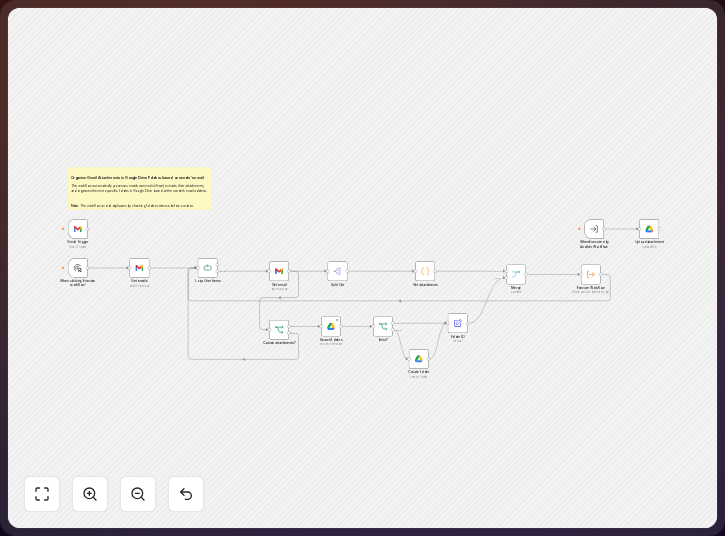
The firm changes the sender rule into a project rule. It maps known sender domains or addresses to a project and discipline. It points the destination at the project’s existing Drive structure. It adds date-based naming and sends the project architect a notification after the file is placed. This is a rules workflow. There is no AI step.
-
Receive new messages through the Gmail node. Use the shared construction administration inbox as the source, and limit intake to messages with attachments if that matches the firm’s mailbox setup. Keep the sender address, sender domain, subject, received date, message identifier, and attachment data. The attachment payload remains available in the
attachmentfield for the next node. -
Check the sender with the IF node. Replace the published raw sender-folder condition with a maintained routing table, where a structural engineer’s address maps to the correct project’s consultant folder, an MEP address maps to its discipline folder, and a GC address maps to submittals. A sender that does not match a rule goes to review instead of being filed by guesswork. A routing branch can test
{{ $json.from.email }} contains "@structural.example"before choosing the structural path. -
Set the project fields with Edit Fields (Set). Add the project key, discipline, document type, destination folder identifier, original sender, received date, and original file name, then build the new file name from the received date and original name. Keep the original name separately so the project architect can trace the file back to the message. One field to add is
project_key, with a value such asRIVER-03from the firm’s routing table. -
Merge the attachment and routing data with the Merge node. The file needs binary attachment content, while the Drive action needs the chosen destination and name, so Merge keeps those values together before upload. If a message has several attachments, preserve each one as its own file for review. Keep the file content in the
binaryfield while joining it tofolderIdandfileName. -
Create the destination folder through Google Drive when the configured sender or project folder does not exist. The published template creates a per-sender folder when needed. The firm can point this action at the project’s existing root and use a controlled subfolder for the discipline or document type. Folder creation should follow the firm’s naming convention. Store the resulting destination identifier in
folderIdso the upload uses the folder created or selected by the rule. -
Upload the attachment to Google Drive. Use the project folder selected by the routing rule, and name the file with the arrival date and original name rather than a guessed document number. Google recommends resumable uploads for files greater than 5 MB, so check the Drive node’s upload behavior when consultant packages exceed that size. (Google Drive upload guide) The upload name can be held in
fileName, such as2026-08-25_structural-detail.pdf. -
Notify the project architect after the Drive action completes. The published node list includes Execute Workflow, so the firm can keep the filing action as a reusable child workflow and place notification handling around it. Send the project name, sender, document name, Drive location, and received date. Route unmatched senders and failed uploads to the same review owner. A notification can say: “New file filed:
{{ $json.fileName }}for{{ $json.project_key }}from{{ $json.from.email }}. Review in Google Drive:{{ $json.webViewLink }}.”
The template gives n8n users a starting point for this Gmail and Google Drive pattern. Learn more about n8n.
The trick to using it well
Treat the routing table as project data, and do not bury every sender rule in a long condition that only one person understands. Keep the sender, project, discipline, document class, and Drive destination together, then give the table an owner.
Use sender identity as an intake signal, not proof that a file is correct: a structural engineer can send the wrong project file, and a GC can forward an old submittal. Check the project, revision, subject, and content before you let the filing stand.
Keep unmatched mail visible because a new consultant may use a different address or a forwarded message may show an intermediary sender. Sending every unknown attachment into a convenient folder creates a quiet filing error, so keep a review queue.
Date naming should help people find a file without implying that the date is the document’s issue date, so label it as the received date and preserve the original name. If the same file arrives twice, you need a duplicate review rule before anyone treats the later copy as the current revision.
What it delivers
For the illustrative firm, an attachment from the structural engineer reaches the structural folder for the mapped project. An MEP attachment reaches its mapped MEP folder. A GC attachment reaches the project’s submittals path. The destination reflects the firm’s project structure rather than a flat collection of sender folders.
Each uploaded file has a date-based name and retains its original name as metadata or in the workflow record. The project architect receives a notice with the sender and Drive location. The notice gives the architect a place to begin review.
An unknown sender does not silently become a project file. It can wait for a person to identify the project and destination. A failed upload can also become a visible exception. That is the difference between moving an attachment and keeping intake accountable.
The published workflow’s Execute Workflow node can support a reusable filing component. The firm can use the same child workflow for several projects while changing the routing values around it. The project-specific rules remain explicit.
Where it fits, and where it doesn’t
n8n fits a firm that already uses Gmail for project correspondence and Google Drive for project files. The published template covers the core attachment path, while you supply the sender map, project folder structure, naming rule, and recipient.
It does not establish contractual receipt. It does not validate the drawing, RFI, or submittal. It does not decide whether a consultant response is complete. The workflow does not replace the project architect’s review.
The firm still needs a source of truth for project names and folder identifiers. It needs a process for revisions and duplicates. It needs a human owner for unknown senders. It also needs to decide how long Gmail messages and Drive files are retained, and who can access each project folder.
Sender routing can fail when a consultant changes addresses or a message is forwarded. Subject-line rules can also misclassify a file. A combined rule can check sender and subject, but every exception needs a review path. The workflow should make uncertainty visible.
The template’s published behavior is based on sender folders. Project-based routing is the firm’s change. It needs configuration before use on live project correspondence. The firm’s folder structure, notification channel, and document-control naming convention still need configuration.
The takeaway
A published n8n template gives the firm a documented path from Gmail attachments to Google Drive folders. The useful adaptation is a maintained map from sender to project and discipline. The project architect decides what the file means and what action follows.
Common questions
Does the published template file RFIs and submittals by project?
Not as published. It files incoming Gmail attachments into a per-sender Google Drive folder and creates that folder when needed, so you must change the sender rule to select a project folder and discipline path.
Is an AI step required?
No. The published node list uses Gmail, IF, Merge, Edit Fields (Set), Google Drive, and Execute Workflow. The proposed filing rule uses sender and project fields. A person reviews unmatched or uncertain mail.
What happens when a sender is new?
The rule should send the attachment to a review path. A coordinator can identify the project, confirm the sender, and add the routing entry. The file should not be assigned to a project by a broad fallback rule.
Can the workflow identify the document revision?
Not from the published description. The workflow can preserve the original file name and add the received date. Check the revision and issue information inside the file during review.
Who receives the notification?
The project architect receives it after a successful Drive upload. You should include the sender, project, date received, file name, and Drive location, while failed uploads and unmatched senders go to the person who owns document intake.
Does this replace the project record?
No. It moves attachments and makes the filing event visible. The firm still needs its project folder rules, review process, revision control, and retention decisions.
Disclosure: DataDrivenAEC may earn a commission if you subscribe through links in this walk-through. Product behaviour is described from n8n’s documentation; the scenario is illustrative.
Related Insights
Published by DataDrivenAEC. Evidence basis: implementation provenance. This legacy article has not completed the source-and-edition review used for newer technical guides; verify important claims against their named sources.